
Tech You Already Own That You're Probably Underusing
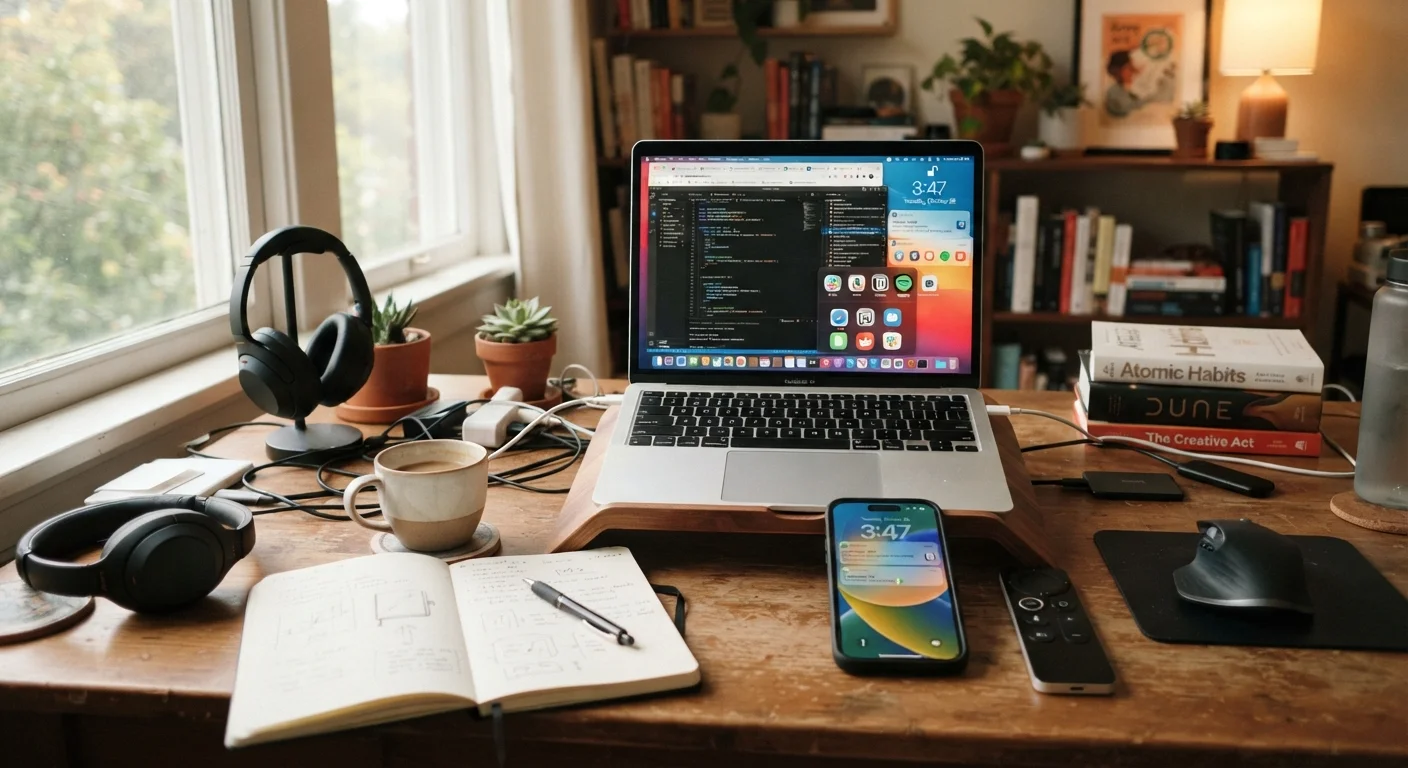
Photo credit: SnippetColumns.com | Easy Search, Reliable Information
Before adding another gadget, consider the untapped features sitting in your current devices — from your phone's scanner to your TV's accessibility tools.
Key Takeaways
- Most phones include a built-in document scanner that rivals dedicated scanning apps.
- Smart TVs have accessibility and display tools that improve viewing for everyone, not just those with disabilities.
- Laptop trackpads support multi-finger gestures that can eliminate the need for a separate mouse.
- Routers often include parental controls and traffic management features most users never configure.
- Your phone's camera has manual and pro modes that most people never open.
The Gadget Gap Nobody Talks About
Before you start researching your next purchase, it's worth pausing on what you already have. Most modern devices — phones, laptops, smart TVs, even routers — ship with a sizeable set of features that the average person never touches. That's not a knock on anyone; manufacturers bury useful tools inside menus, and marketing rarely highlights practical utility over headline specs.
The result is a common pattern: people buy new gadgets to solve problems their current devices could already handle. If you've ever wished your phone could scan documents, or felt frustrated navigating your TV's picture settings, the answers are probably already installed. The myths that cost people money often come down to this exact blind spot — assuming a new device is needed when the existing one just needs exploring.
Below are seven underused capabilities worth checking on hardware you likely already own.
Your phone's built-in document scanner
Both iOS and Android include native document scanning — no third-party app required. On iPhone, it's built into the Notes app and the Files app. On Android, Google Drive's camera icon triggers a scan mode that automatically crops and enhances the document. The output is a clean PDF you can share or store immediately.
This is genuinely useful for receipts, insurance cards, school forms, and anything else you'd normally photograph poorly and struggle to read later. See also: more ways to get more from your phone.
Your phone can already produce clean, shareable PDFs — no extra app needed.
Smart TV accessibility and display settings
Smart TVs include a range of display and audio tools that most people skip entirely during setup. Closed captioning options, text size controls, high-contrast modes, and audio description tracks are all standard on most current models. Beyond accessibility uses, the picture calibration settings — often labeled something like 'Expert' or 'Advanced' — let you reduce eye strain and improve color accuracy well beyond the factory defaults.
These tools are worth exploring even if you don't need them for a specific accessibility reason. The same logic applies to phones: features designed for specific needs often turn out to be useful for everyday viewing and navigation.
Smart TV display calibration and accessibility tools improve viewing for virtually anyone.
Laptop trackpad gestures
Multi-finger trackpad gestures are supported on most modern laptops — Windows and Mac alike — and most users never configure them. A three-finger swipe can switch between open apps or desktops; a four-finger tap can open a notification center or mission control view. Pinch-to-zoom works in most browsers and document editors without any setup.
Learning five or six gestures can meaningfully reduce how often you reach for a mouse, especially in tighter spaces like a plane seat or couch. Your trackpad's settings panel will show you exactly which gestures are available for your hardware.
Trackpad gestures on most laptops can replace a mouse for the majority of daily tasks.
Your router's built-in traffic controls
Most home routers — including the ones provided by internet service providers — include a management interface reachable through your web browser. Inside, you'll typically find options for setting device-level bandwidth limits, creating a separate guest network, scheduling when certain devices can access the internet, and reviewing which devices are connected.
These controls are useful for households with children, for keeping a home office network separate from guest access, or simply for diagnosing why streaming keeps buffering. If you're thinking about adding a smart home device, it's also worth reviewing the privacy implications of always-on devices before plugging anything else into that network.
Your router likely already supports guest networks and per-device controls — most people never log in.
Camera modes beyond auto
Most smartphone cameras now include a 'Pro' or 'Manual' mode that gives you direct control over shutter speed, ISO (the sensor's light sensitivity), and white balance. These aren't just for photographers — even understanding how to lock exposure before taking a shot in a bright room can noticeably improve your results without any formal training.
Portrait modes, night modes, and ultra-wide lenses on multi-lens phones are also worth exploring before assuming you need better hardware. Practical smartphone photography doesn't require a new phone — it usually just requires opening a different mode.
Pro and manual camera modes let you control light and focus without any photography background.
Tablet multi-user profiles
Android tablets have supported multiple user profiles for several years, allowing each person in a household to have their own apps, settings, and saved passwords — all on one device. This is particularly practical for families where a tablet shifts between a parent and a child. Each profile stays separate, so a child's content restrictions don't affect an adult's account.
If your household shares a tablet, setting this up takes less than ten minutes. A full walkthrough of profiles and parental controls is available in our guide to setting up a shared family tablet.
Android tablets support full separate profiles — one device can genuinely serve multiple users cleanly.
Phone storage management tools
Both iOS and Android include built-in storage analysis tools that break down exactly what's consuming space — app caches, duplicate photos, large video files, and offline downloads from streaming apps. These tools can free up meaningful storage without deleting anything you actually want to keep.
If your phone feels sluggish or constantly warns about full storage, checking this panel is the logical first step — not buying a new device. Our deeper look at why phones fill up so fast explains what's quietly eating space and what's safe to clear.
Built-in storage tools can reclaim gigabytes without deleting photos or apps you actually use.
Getting More Without Spending More
None of these features require a subscription, an upgrade, or any technical skill beyond knowing where to look. The settings menu alone on most smartphones contains tools that can meaningfully change how you use the device every day.
Start With One Device at a Time
Rather than auditing every device at once, pick the one you use most — usually your phone — and spend 15 minutes in its settings. Look specifically for sections labeled 'Advanced,' 'Accessibility,' or 'Digital Wellbeing.' You're likely to find at least two or three features worth enabling. Once that becomes habit, apply the same approach to your next most-used device.
If you're already getting good value from your current devices, that's worth weighing before any new purchase. Our practical framework for evaluating gadgets walks through exactly that calculus. And if a device truly has run its course, check how to extend its useful life before writing it off.

Author
Tech & Gadgets Editorial Team
Tech & Gadgets Editorial Team is the collective byline for our editorial team and contributor network. Articles published under this byline or an editorial pen name are researched, written, and reviewed according to our editorial standards for clarity, consistency, and independence before publication.
View all articles →