
The Settings Menu Features Most People Have Never Touched
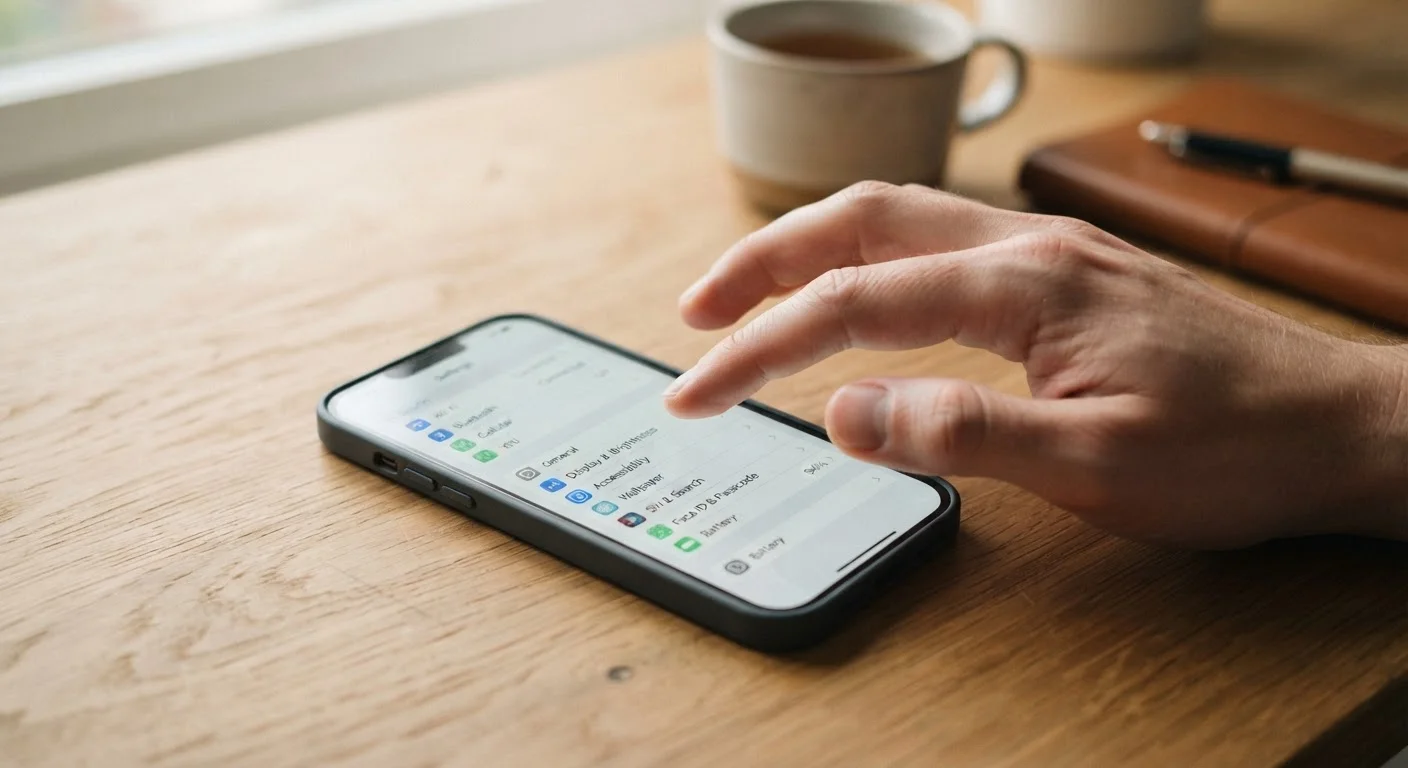
Photo credit: SnippetColumns.com | Easy Search, Reliable Information
In this article
From scheduled Do Not Disturb to per-app data limits, these overlooked settings can meaningfully improve your daily phone experience.
Key Takeaways
- Scheduled Do Not Disturb can silence your phone automatically during sleep or focus hours.
- Per-app mobile data limits prevent background apps from quietly draining your data plan.
- Battery optimization settings can meaningfully extend how long your phone lasts between charges.
- Adaptive display and Night Mode reduce eye strain without requiring any third-party apps.
- Most phones include built-in app timers that limit daily use without needing a separate app.
The Settings You Keep Walking Past
Most people open Settings to connect to Wi-Fi, adjust the ringer, or troubleshoot something that broke. Then they leave. It's a reasonable habit — but it means a large portion of genuinely useful controls sit untouched, often for the entire life of the phone.
These aren't obscure developer options or technical workarounds. They're mainstream features that both Android and iOS have built in, tested, and made accessible to anyone. The gap isn't knowledge — it's awareness. Once you know what to look for, most take under a minute to set up.
If you've ever wondered why your battery drains faster than expected, why notifications keep interrupting you at the wrong moments, or why your phone feels slower over time, there's a reasonable chance a settings adjustment could help. Our guide to keeping your phone performing well over time covers the maintenance side — these tips are about taking control of how your phone actually behaves day to day.
Start With One Setting at a Time
It's tempting to change everything at once, but adjusting one setting per day makes it easier to notice what's actually having an impact. Scheduled Do Not Disturb and battery optimization are good first choices — both have clear, measurable effects.
The list below covers features available on most modern Android and iOS devices, though exact menu names and paths will vary by manufacturer and software version.
Seven Features Worth Finding Today
Scheduled Do Not Disturb
Do Not Disturb isn't just a toggle you flip manually when you need quiet. On both Android and iOS, you can schedule it to activate automatically — say, every night from 10 p.m. to 7 a.m. — without touching your phone. You can also allow calls from specific contacts to break through, so genuine emergencies still reach you.
This is one of the most practically useful settings available, especially if late-night notifications are affecting your sleep. For more on why that matters, see screen time and sleep.
Scheduling Do Not Disturb means you never have to remember to silence your phone at bedtime.
Per-App Mobile Data Restrictions
Your phone lets you control which apps can use mobile data and which are restricted to Wi-Fi only. This is buried in network settings, but it's worth finding. Streaming apps, social platforms, and news aggregators can consume significant data in the background — even when you're not actively using them.
Restricting background data on apps you only use at home keeps your monthly data usage predictable without disabling anything you actually need on the go.
Restricting background data on select apps can prevent surprise overages without affecting day-to-day use.
Battery Optimization Per App
Both major mobile operating systems allow you to control how aggressively the battery optimizer treats individual apps. Apps set to "unrestricted" run freely in the background; apps set to "optimized" or "restricted" are paused when you're not actively using them.
Checking this list periodically — especially after installing new apps — can make a measurable difference in how long your phone lasts through a full day. Most apps work fine with optimization enabled; the exceptions are usually navigation or communication apps where background activity matters.
Optimizing background activity on a handful of apps can add meaningful time to your battery life.
Adaptive or Scheduled Display Color
Night Mode (sometimes called Night Shift or Eye Comfort Shield depending on your device) shifts your screen's color tone warmer after sunset, reducing the blue-light-heavy output that can interfere with winding down. Most phones can schedule this automatically based on sunset time in your location.
Separately, Adaptive Brightness isn't just about comfort — letting your phone learn your preferred brightness in different environments reduces how often it cranks the screen to full brightness unnecessarily, which also saves battery.
Scheduling a warmer display color at night costs nothing and requires no third-party app.
App Screen Time Limits
Both Android (via Digital Wellbeing) and iOS (via Screen Time) let you set daily time limits on individual apps. Once the limit is reached, the app is locked behind a brief confirmation step. It's not a hard block — it's a friction point, which is often enough to prompt a more deliberate choice about whether to keep scrolling.
This is a feature that tends to be set up once and largely forgotten, which is exactly how it should work. It doesn't require discipline every day because the phone handles the reminder.
App time limits create a useful pause before mindless scrolling, without requiring constant willpower.
Storage Analysis Tools
Your phone almost certainly has a built-in storage analyzer that breaks down what's consuming space — apps, photos, cached data, downloads. Most people only discover this when storage runs out and they're scrambling for space. Checking it proactively takes less than two minutes and often surfaces easy wins.
For a deeper look at what fills up phone storage faster than most people expect, our article on why your phone fills up faster than you'd expect explains the patterns behind the problem.
The built-in storage analyzer often reveals gigabytes of recoverable space hiding in plain sight.
Notification Delivery Settings
Beyond muting individual apps, most phones now offer granular notification controls: you can set certain notifications to deliver silently (no sound, no screen wake), batch them into summaries delivered once or twice a day, or allow them only when the screen is already on. This is a step beyond the binary on/off toggle most people default to.
For a broader look at how Android and iOS handle alerts differently by design, Android vs. iPhone notifications is a useful comparison.
Silent delivery and notification summaries reduce interruptions without losing information you actually want.
Settings Vary by Device and Software Version
Menu names and locations differ between Android manufacturers and iOS versions. If you can't find a setting by its listed name, searching within the Settings app itself (most have a built-in search bar) is usually faster than navigating manually. The features described here are available on most devices running current or recent software.
If you find yourself adjusting privacy-related settings, it's worth going deeper. Our complete guide to smartphone privacy settings explains what each control actually does and the real-world implications of each choice.
Small Changes, Real Differences
None of these settings require technical skill or time investment. Most deliver noticeable changes within a day — fewer interruptions, a longer battery, a more readable screen at night. They're the kind of adjustments that, once made, you stop thinking about because the phone simply works better.
If these features sparked your curiosity about what else your phone can do, tech you already own that you're probably underusing is worth a look — it covers untapped features across multiple devices, not just phones.

Author
Tech & Gadgets Editorial Team
Tech & Gadgets Editorial Team is the collective byline for our editorial team and contributor network. Articles published under this byline or an editorial pen name are researched, written, and reviewed according to our editorial standards for clarity, consistency, and independence before publication.
View all articles →