
The Complete Picture on Smartphone Privacy Settings
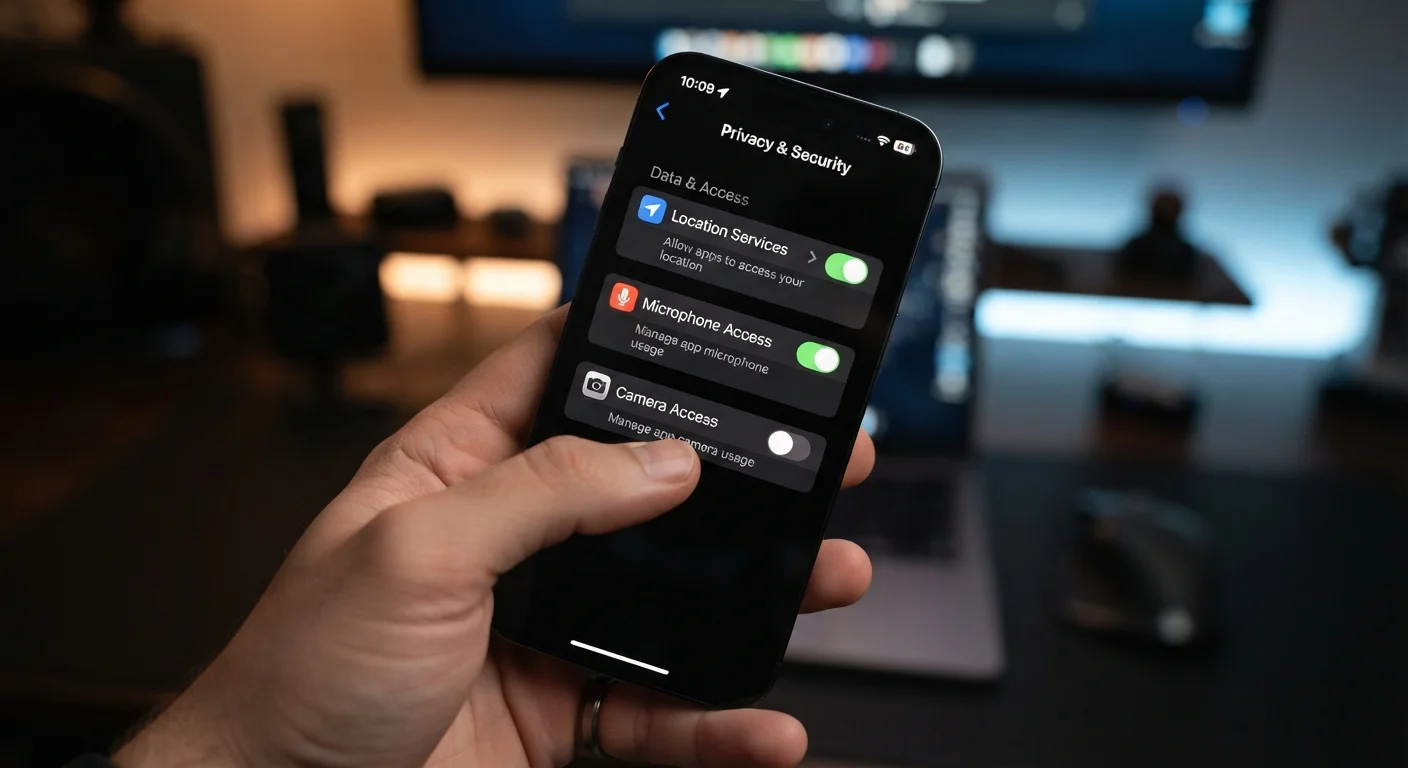
Photo credit: SnippetColumns.com | Easy Search, Reliable Information
In this article
Location access, ad tracking, microphone permissions — this end-to-end guide explains what each setting does and the real-world implications of each choice.
Key Takeaways
- Most smartphones offer per-app permission controls that many users have never reviewed.
- Location sharing can often be set to 'approximate' without breaking most app functionality.
- Ad tracking identifiers can be limited or reset through built-in system settings on both iOS and Android.
- Microphone and camera permissions can be revoked from apps that don't genuinely need them.
- A periodic permission audit — once or twice a year — catches overreach before it becomes a habit.
- Privacy decisions involve real trade-offs; the goal is informed choice, not maximum restriction.
Why Smartphone Privacy Settings Deserve a Closer Look
Most people set up a new phone, tap through a dozen permission prompts, and never revisit those choices. That's understandable — the setup process is fast and the prompts are easy to dismiss. But those early decisions quietly shape how much data your phone shares with apps, advertisers, and platform services every single day.
Privacy settings aren't about paranoia. They're about understanding trade-offs. Sharing your precise location with a mapping app makes sense. Sharing it with a flashlight app does not. The gap between those two situations is where your privacy settings do their real work.
For a broader look at system-level settings that often go unexamined, explore settings most people have never touched — many of which intersect with privacy in ways that aren't obvious.
89%
Apps requesting at least one sensitive permission
Research from app store analyses consistently finds that the large majority of mobile apps request access to at least one sensitive data category such as location or contacts.
3 in 5
Users who have never reviewed app permissions
Consumer surveys on mobile privacy regularly indicate that a majority of smartphone users have not revisited their app permissions since initial device setup.
~35%
Reduction in ad profile accuracy after IDFA opt-out
Industry analyses following iOS 14's App Tracking Transparency rollout noted significant drops in ad targeting precision when users declined tracking requests.
Location Access: Precise, Approximate, or Off
Location is one of the most valuable data points your phone can share — and one of the most granular to control. Both iOS and Android now offer three tiers: precise location, approximate location, and no access. They also let you choose whether an app can access location always, only while in use, or never.
Precise location uses GPS to pinpoint you within meters. Navigation, ride-sharing, and food delivery apps typically need this. Approximate location gives an app a general area — useful for weather apps or local news — without revealing your exact address or movements. For the majority of apps requesting location, approximate access is sufficient.
The "always on" option deserves particular scrutiny. Granting background location access means an app can track your movements even when you're not using it. Few apps have a legitimate reason for this; fitness trackers and certain navigation tools are among the exceptions.
Use 'Approximate Location' as Your Default
Switch most apps from precise to approximate location unless navigation or delivery accuracy is explicitly required. The vast majority of apps that request location — weather services, local search, social check-ins — function just as well with a general area. This single change meaningfully reduces the granularity of location data collected about your daily movements.
Review your location-sharing history by opening your phone's location settings and checking which apps have accessed your location recently. Both platforms log this activity.
Microphone and Camera Permissions
Microphone and camera access are among the permissions that generate the most concern — and for understandable reasons. An app with microphone access can, in principle, record audio whenever it's running. Camera access allows an app to capture images or video.
In practice, operating systems have introduced meaningful guardrails. iOS displays an orange dot in the status bar when the microphone is in use, and a green dot when the camera is active. Android 12 and later added similar indicators. These visual cues make unauthorized access much harder to conduct silently.
Still, the sensible approach is to audit which apps hold these permissions. A recipe app has no reason to access your microphone. A casual game has no need for your camera. Revoking those permissions doesn't break the app's core function — it just removes unnecessary access.
Treat the permission request prompt at install time as a first draft, not a final decision. You can always grant access later when the app actually needs it.
Apps often request broad permissions upfront to avoid friction later, but many of those permissions are only needed for optional features you may never use.
Use your phone's built-in privacy dashboard or permission manager rather than going app by app — it surfaces patterns you'd otherwise miss, like five apps all holding microphone access.
Centralized permission views were added to both major platforms specifically because per-app reviews are slow and inconsistent; the dashboard approach is faster and more complete.
If you're interested in how camera permissions connect to photography features worth understanding, this guide to smartphone photography covers how to use camera capabilities intentionally rather than just reactively.
Ad Tracking and Data Sharing
Every phone carries an advertising identifier — a string of characters that ad networks use to build a profile of your interests across apps and websites. On iOS, this is the IDFA; on Android, it's the GAID. Apps use these IDs to serve targeted ads and to measure whether you clicked on one.
Since iOS 14, Apple requires apps to ask permission before accessing your IDFA — a prompt labeled "Ask App Not to Track." Declining this request limits cross-app tracking, though it doesn't eliminate all ad targeting. Android lets you opt out of ad personalization and reset your advertising ID through Google settings.
Resetting your advertising ID periodically severs the historical data tied to your old identifier, making it harder to reconstruct a long-term behavioral profile. It doesn't stop ads from appearing — it just makes them less precisely targeted.
Ad Opt-Out Limits Targeting, Not Ads
Opting out of ad personalization or resetting your advertising ID does not stop you from seeing advertisements. It reduces the precision of targeting by limiting the behavioral data tied to your device identifier. You will still see ads — they will simply be less tailored to your inferred interests. Understand this distinction before expecting opt-out to produce ad-free experiences.
For a grounded look at how always-on home devices handle similar data collection, see the privacy trade-offs in always-on home devices — the principles overlap significantly with phone-based tracking.
“The best privacy setting is one you've made a deliberate choice about — not one you accepted by default without reading it.”
— Electronic Frontier Foundation, Digital rights and privacy advocacy organization
App Permissions at a Glance
Both iOS and Android give you a centralized view of permissions organized by category — not just by app. This means you can see, for example, every app with access to your contacts, rather than opening each app's settings individually. It's a faster way to spot overreach.
Key permission categories worth reviewing:
- Contacts: Messaging and email apps need this. Most others don't.
- Photos/Media: Many apps request full photo library access when they only need to let you select a single image. Both platforms now support selecting specific photos rather than granting blanket library access.
- Bluetooth: Used by audio devices and some health apps, but also by location-tracking services as an alternative to GPS.
- Background App Refresh: Allows apps to update content when not in use. Disabling it for most apps has minimal impact on daily use but reduces background data activity.
For a deeper breakdown of what specific permission language actually means, reading app permissions without guessing walks through each permission type in plain terms.
Permission Controls Vary by OS Version
The granularity of permission options depends on your operating system version. Older Android and iOS versions may not offer approximate location or per-photo selection — another reason keeping your OS updated matters beyond security patches. Check your current OS version in Settings > About Phone (Android) or Settings > General > About (iOS).
Building a Practical Privacy Routine
Privacy isn't a one-time configuration — apps update, permissions get added, and new installs accumulate over time. A realistic approach is a brief audit every few months: open your privacy or permissions settings, scan for anything that looks out of place, and revoke what isn't needed.
A few habits that pay off with minimal effort:
- When installing a new app, deny permissions initially and grant them only if the app prompts you in context — for example, when you try to attach a photo.
- After a month of use, check whether any app you don't actively use still holds sensitive permissions.
- Before passing on or reselling a device, a full factory reset is essential. See the full checklist for handing off an old phone for the complete process.
Privacy decisions don't require technical expertise. They require about ten minutes of attention, applied periodically. The settings are already built into your phone — using them is simply a matter of knowing where to look and what the choices actually mean.
Revoking Permissions Can Break App Features
Removing a permission an app actively relies on will disable the related feature — for example, revoking microphone access from a voice-note app will stop voice recording from working. Before auditing, note which features you actually use so you can make intentional trade-offs rather than accidentally disabling something you need.
This article provides general information about smartphone privacy settings and is not a substitute for professional cybersecurity advice. Settings and options vary by device manufacturer, operating system version, and region.

Author
Tech & Gadgets Editorial Team
Tech & Gadgets Editorial Team is the collective byline for our editorial team and contributor network. Articles published under this byline or an editorial pen name are researched, written, and reviewed according to our editorial standards for clarity, consistency, and independence before publication.
View all articles →