
Reading App Permissions Without Guessing What They Mean
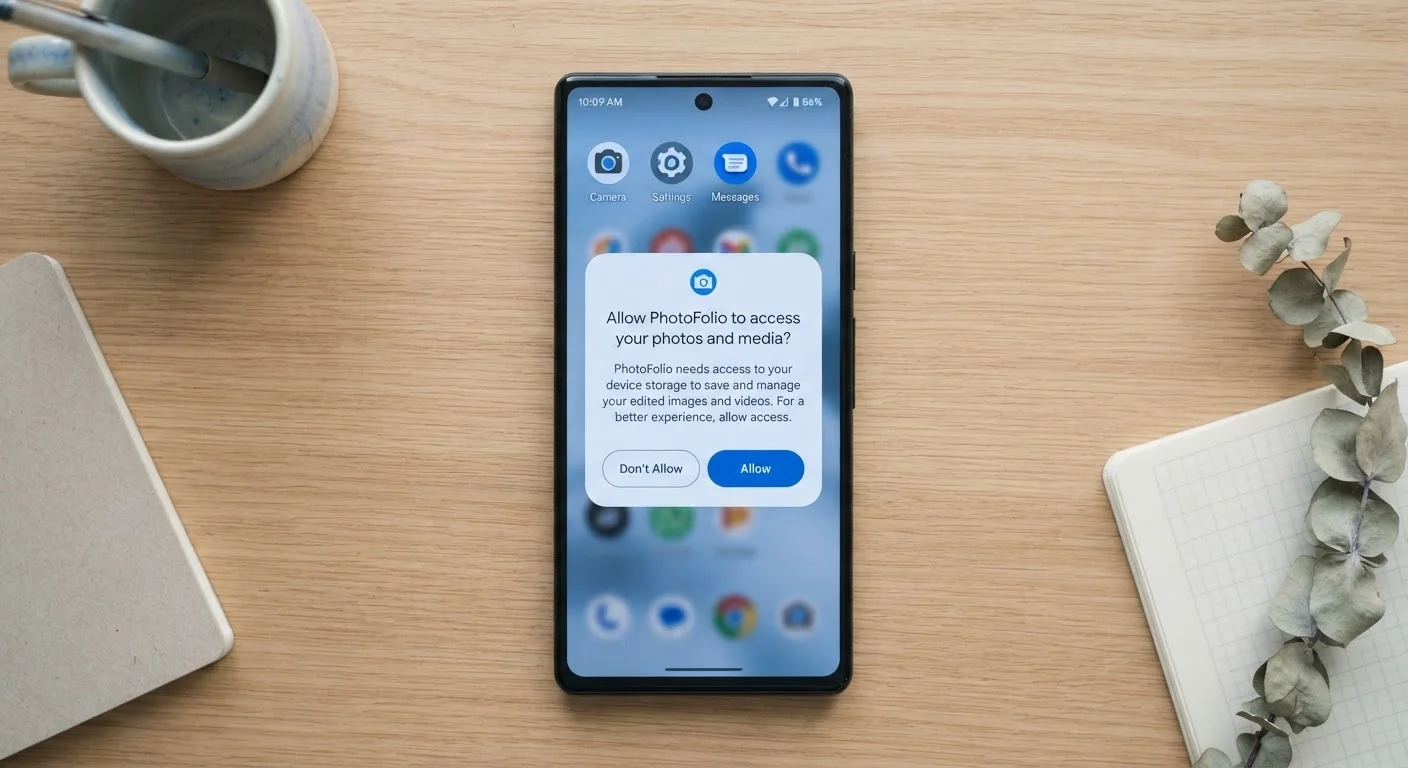
Photo credit: SnippetColumns.com | Easy Search, Reliable Information
In this article
App permissions use plain language that can still be confusing. Learn what each permission grants, which are routine, and which deserve a second look.
Key Takeaways
- App permissions grant real access to your device hardware, data, and accounts — not just cosmetic preferences.
- Many permissions are routine and harmless; a handful deserve careful consideration before you tap Allow.
- You can review and revoke permissions at any time through your phone's settings without uninstalling the app.
- Mismatched permissions — ones that don't fit an app's core function — are the clearest warning sign.
- Both Android and iOS let you grant permissions partially, such as approximate location instead of precise.
Why Permission Prompts Feel Confusing
App permissions are written to be legally accurate, not reader-friendly. A prompt that says "Allow access to your precise location" is technically clear, but it doesn't tell you what the app plans to do with that location or how long it will retain it. That gap between what the words say and what they mean in practice is where most confusion lives.
The good news: you don't need to understand every edge case. You need a simple mental framework — and that's exactly what the steps below provide. If you're curious how permissions fit into the broader landscape of phone customization, our overlooked settings guide is a useful companion read.
What you will need
Tools You'll Use
No third-party software is required. Everything you need is already on your device.
Device Settings App
Used to view, audit, and revoke individual app permissions at any time.
App Store or Google Play listing
The app's store page often describes what permissions it needs and why, under the privacy or data-safety section.
Reading a permission prompt carefully is a bit like reading a label — the information is there, but you need to know which parts to focus on. The same methodical approach applies whether you're reading a skincare ingredient list or evaluating what an app is asking for.
Step-by-Step: Reading and Managing App Permissions
Follow these steps the next time an app requests access — or work through them now to clean up permissions you've already granted.
Open the permission prompt with intention
When an app asks for a permission for the first time, pause before tapping. The prompt tells you the category of access being requested — Camera, Location, Contacts, and so on. Ask yourself one question: Does this app's core function require this? A navigation app asking for Location makes sense. A flashlight app asking for Contacts does not.
Decode the most common permission categories
Here's what each category actually touches on your device:
- Location: Your physical coordinates. Choose "While Using" or "Approximate" whenever possible to limit exposure.
- Camera & Microphone: Live access to capture video, photos, or audio. Legitimate for video-call, scanner, and voice-memo apps.
- Contacts: Your full address book, including names, numbers, and email addresses of people who haven't agreed to anything.
- Notifications: The ability to send alerts. This is low-risk for privacy but can affect how cluttered your lock screen becomes.
- Photos / Media: Read or write access to your photo library. Many apps only need to add a photo, not read everything you've ever saved.
- Bluetooth & Nearby Devices: Can detect other devices around you — used legitimately by fitness trackers and wireless speakers, but also capable of inferring your location indirectly.
Spot the permissions that deserve extra scrutiny
Some permissions carry more risk than others because they expose data about third parties or can be used persistently in the background:
- Contacts — exposes other people's data, not just yours.
- Precise Location always-on — builds a detailed movement history over time.
- Microphone — raises concerns when granted to apps with no voice or audio feature.
- Full photo library access — allows an app to scan metadata from every image, including location tags embedded in old photos.
The mismatch test is simple: if the permission has no obvious connection to what the app does, treat it as a yellow flag.
Audit permissions already granted
On iPhone/iPad: Go to Settings → Privacy & Security. Each category lists which apps have been granted that access. Tap any category to toggle individual apps on or off.
On Android: Go to Settings → Privacy → Permission Manager. The same category-first view lets you see every app that can access your camera, location, microphone, and more.
Look for apps you rarely open that hold sensitive permissions — those are the easiest ones to revoke with no meaningful downside.
Choose the least-permissive option that still lets the app work
Modern mobile operating systems offer granular choices rather than a binary Allow/Deny:
- Location: Never / While Using / Always — pick "While Using" unless always-on is genuinely necessary.
- Location precision: Precise vs. Approximate — approximate is sufficient for most weather and local-search features.
- Photos: Selected Photos vs. Full Library — choose Selected whenever possible.
- Notifications: Time-sensitive only vs. All — limiting this reduces interruptions without breaking core functionality.
This principle of least privilege — granting only what's needed — is the same standard used in professional IT security, and it applies just as well to the apps on your personal phone.
When in Doubt, Check the Store Listing
Both the Apple App Store and Google Play now include a "Privacy" or "Data Safety" section on every app's listing page. This shows what data the developer says the app collects and whether it's linked to your identity. It's not a guarantee, but it's a useful cross-reference before you decide whether a permission makes sense.
Denying a Permission Is Not the Same as Being Safe
Revoking or denying permissions reduces the data an app can collect directly, but it doesn't affect data an app may gather through other means, such as your IP address or usage patterns. Permissions are one layer of a broader privacy picture. For a more complete view, see our guide to smartphone privacy settings.
Contacts Permission Exposes Other People's Data
Granting Contacts access doesn't just share your information — it uploads the names, numbers, and email addresses of everyone in your address book. Those people have no say in the matter. Only grant this permission to apps where syncing contacts is a core feature you actively use, such as a messaging or calling app.
After the Audit: Staying on Top of Permissions Over Time
Permissions aren't a one-time decision. Apps update, and updates sometimes introduce new permission requests. An app you installed years ago and trusted then may have quietly added a microphone or location requirement that didn't exist at launch.
The habit to build is simple: check your Permission Manager (Android) or Privacy & Security settings (iOS) the same way you'd check any other account or subscription — briefly, periodically, and without obsessing. For a deeper dive into what's happening across your phone's privacy controls, our complete smartphone privacy guide walks through each major setting category end to end.
Understanding permissions is also a foundation for smarter app spending. When you know what an app can access, you're better positioned to evaluate whether it's worth keeping — a mindset that fits naturally into smarter spending habits overall.

Author
Tech & Gadgets Editorial Team
Tech & Gadgets Editorial Team is the collective byline for our editorial team and contributor network. Articles published under this byline or an editorial pen name are researched, written, and reviewed according to our editorial standards for clarity, consistency, and independence before publication.
View all articles →