
Why Your Smart Devices Keep Dropping Off the Network
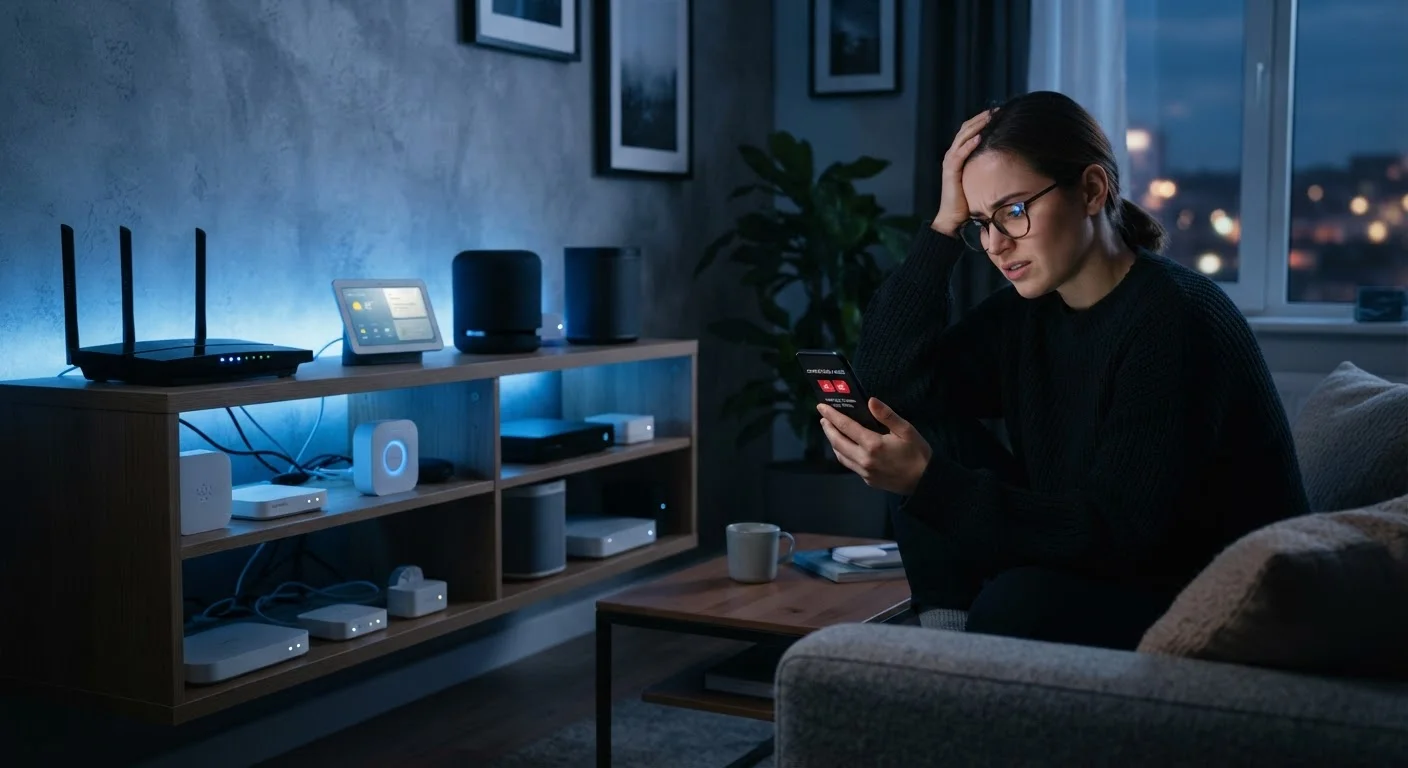
Photo credit: SnippetColumns.com | Easy Search, Reliable Information
In this article
Intermittent disconnects are one of the most common smart home frustrations. Here's what causes them and how to address the underlying issues.
Key Takeaways
- Most smart device dropoffs trace back to router placement, band conflicts, or overcrowded networks — not defective hardware.
- The 2.4 GHz and 5 GHz bands serve different purposes; assigning devices to the wrong one causes instability.
- IP address conflicts and outdated firmware are two of the most overlooked causes of random disconnects.
- A few network hygiene habits can dramatically reduce how often smart devices lose connection.
The Real Reason Smart Devices Go Offline
A smart bulb that stops responding, a thermostat that vanishes from the app, a security camera that reconnects at 2 a.m. — these aren't signs of cheap hardware. In most cases, they point to network-level problems that affect even expensive, well-reviewed devices.
Smart home gadgets are generally low-power devices with modest Wi-Fi radios. They are more sensitive to signal quality, IP conflicts, and band congestion than a smartphone or laptop, which have stronger antennas and smarter reconnection logic. Understanding that distinction is the starting point for fixing persistent dropoffs.
If you've ever wondered whether adding connected devices is worth the headaches, read about the real trade-offs of a growing smart home before expanding your setup further.
~70%
Smart home issues linked to Wi-Fi problems
Industry support data consistently shows that the majority of smart device complaints involve network connectivity rather than device hardware failure.
2.4 GHz
Band used by most IoT devices
Most smart home sensors, bulbs, and plugs operate only on 2.4 GHz — a band that is also heavily congested in apartment buildings and dense neighborhoods.
Common Mistakes That Cause Disconnects — and How to Fix Them
The following errors account for the vast majority of smart device connectivity complaints. Most are fixable without buying new hardware.
Placing the router too far from smart devices and assuming Wi-Fi range is uniform throughout the home.
Why it happens: Routers are often tucked away in closets or entertainment cabinets for aesthetic reasons, creating dead zones that look fine on a phone but starve low-power smart devices.
Connecting smart devices to the 5 GHz band when they are designed for 2.4 GHz only.
Why it happens: Modern routers often broadcast both bands under the same network name, so devices connect automatically — sometimes to the wrong band for their hardware.
Letting the router assign IP addresses dynamically without reserving addresses for key smart devices.
Why it happens: Dynamic IP assignment (DHCP) is the default and works fine for phones and laptops, but smart home hubs and cameras can lose their address lease and reconnect on a different IP, confusing the controlling app.
Ignoring Wi-Fi channel congestion from neighboring networks.
Why it happens: In apartments or closely spaced homes, dozens of networks compete on the same few Wi-Fi channels, causing interference that degrades stability without any obvious signal-strength warning.
Skipping firmware updates for both the router and the smart devices themselves.
Why it happens: Updates feel optional and slightly risky to many users, especially when a device appears to be working most of the time.
Don't Ignore Firmware and App Updates
Manufacturers regularly patch connectivity bugs through firmware updates. A device running old firmware may behave erratically on modern routers or after your internet provider updates its infrastructure. Before troubleshooting hardware, always check whether your smart devices and router firmware are current — this single step resolves a surprising number of persistent disconnect issues.
A few of these fixes — particularly DHCP reservation and manual channel selection — require logging into your router's admin interface. The process varies by manufacturer, but the router's label usually lists the admin address (commonly 192.168.1.1 or 192.168.0.1) along with default login credentials.
Too Many Devices on One Band
Consumer routers have practical limits on how many simultaneous connections they can manage reliably. Stacking 20 or more devices onto a single band — especially 2.4 GHz — can cause intermittent drops even when signal strength looks fine. If your network is growing, consider a router designed for higher device counts or a mesh system that distributes the load.
Building a More Stable Smart Home Network
Once you've addressed the most common mistakes, a few ongoing habits keep things running smoothly. Restart your router on a regular schedule — monthly is a reasonable baseline — to clear memory and refresh connections. Keep your device count in mind as you add new gadgets; a router rated for a typical household may struggle as your smart home grows.
It's also worth auditing which devices actually need to be connected at all times. Maintaining your electronics deliberately — rather than just replacing them when they misbehave — often means fewer devices competing for bandwidth in the first place.
And if you've been hesitant to start building a smart home because the tech sounds complicated, many of the common barriers are more myth than reality. A stable, well-configured network is genuinely the hardest part — and it's manageable with the steps above.

Author
Tech & Gadgets Editorial Team
Tech & Gadgets Editorial Team is the collective byline for our editorial team and contributor network. Articles published under this byline or an editorial pen name are researched, written, and reviewed according to our editorial standards for clarity, consistency, and independence before publication.
View all articles →