
Accessibility Features That Are Useful Even Without a Disability
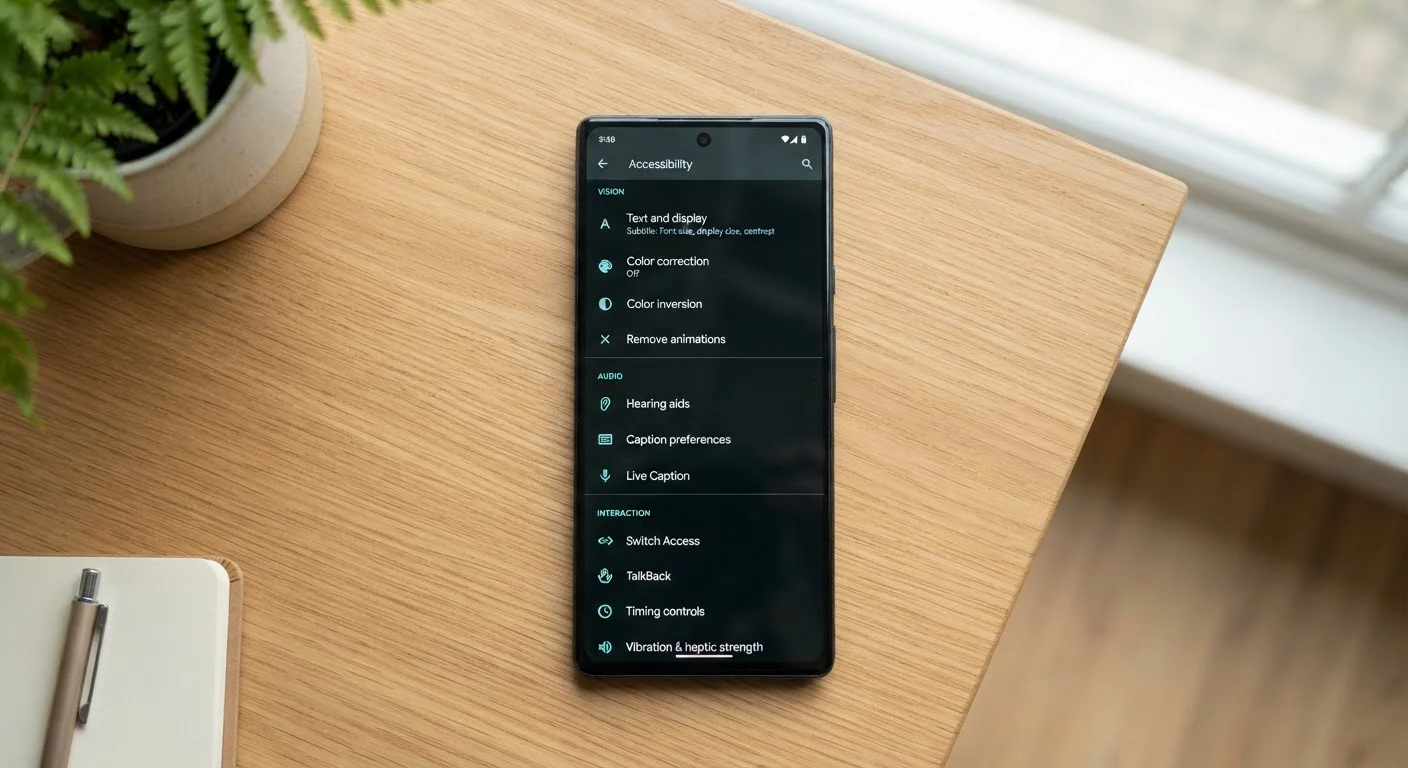
Photo credit: SnippetColumns.com | Easy Search, Reliable Information
In this article
Designed for accessibility but genuinely helpful for anyone — these built-in tools improve readability, reduce eye strain, and simplify navigation.
Key Takeaways
- Accessibility features are built into every major phone and tablet, completely free to use.
- Tools like text enlargement, display zoom, and voice control benefit anyone, not just those with disabilities.
- Enabling even one or two of these features can meaningfully reduce daily eye strain and frustration.
- Most features take under a minute to turn on through your phone's Settings menu.
Hidden in Plain Sight
Accessibility features have a branding problem. The name implies they're for a specific group — people with visual, motor, or cognitive disabilities. In practice, these features are among the most genuinely useful tools on any phone or tablet, and they're available to every single user, for free, right now.
Think of them less as accommodations and more as usability upgrades that happened to be designed with intention. Engineers building accessibility features have to think carefully about clarity, simplicity, and reducing friction — qualities that make interfaces better for everyone. The result is a suite of tools that are often far more practical than the flashier features that get all the press coverage.
If you've ever felt like your phone is slightly harder to use than it should be — too small, too flashy, too tiring on the eyes — there's a good chance one of these settings is the fix. See also other overlooked phone settings worth enabling.
Where to Find These Settings
On iPhones, most of these features live under Settings > Accessibility. On Android devices, the path varies by manufacturer but is typically Settings > Accessibility or Settings > Display. A quick search within your phone's Settings app using the feature name will find it in seconds. Many of these options are also configurable from the Control Center or Quick Settings panel.
Display Text Size and Bold Text
Buried in your phone's accessibility or display settings is a slider that controls system-wide text size. Bumping it up one or two notches makes emails, menus, and web articles noticeably easier to read — especially in poor lighting or on small screens. Pair it with the Bold Text toggle and characters become crisper without needing glasses or squinting. This is one of the lowest-effort, highest-payoff changes you can make to any phone.
A single text-size adjustment can make your entire phone easier to read in under thirty seconds.
Display Zoom or Screen Zoom
Different from text size, Display Zoom (on iPhones) or Screen Zoom (on Android) scales the entire UI — icons, buttons, and interface elements — not just words. If you've ever struggled to tap a small button or navigate a cluttered home screen, this feature effectively makes everything physically larger without changing your resolution. It's particularly useful on compact phone models where interface elements can feel cramped.
Screen Zoom scales buttons and icons too — not just text — making the whole phone easier to navigate.
Reduce Motion
Many operating systems use animated transitions — apps swooping in, screens dissolving, parallax wallpaper effects. While visually polished, these animations can be disorienting or simply distracting for plenty of people. The Reduce Motion setting strips most of these down to simple fades. As a side benefit, it can also make your phone feel slightly snappier, since the processor spends less time rendering elaborate transitions.
Turning off motion animations can make your phone feel faster and your screen easier to focus on.
Spoken Content and Text-to-Speech
Most phones can read aloud any selected text, an entire web page, or notifications as they arrive. This is invaluable for anyone who consumes long articles, follows recipes hands-free, or simply wants to rest their eyes during a commute. On iOS, look for Spoken Content under Accessibility. On Android, Select to Speak works similarly. You don't need to be visually impaired to appreciate having your phone read a lengthy email while you cook dinner.
Text-to-speech lets your phone read articles aloud — useful for multitasking, not just vision impairments.
Color Filters and Night Mode
Color filter settings — originally designed for people with color vision deficiencies — can also reduce blue light exposure and ease eye strain during evening use. Night Shift (iOS) and Night Light (Android) shift the screen toward warmer tones after dark. Beyond those, the full color filter suite lets you lower screen intensity in ways that standard brightness controls don't. If your eyes feel fatigued at the end of a long screen day, this is worth exploring.
Color filters do more than help with color blindness — they're a legitimate tool for reducing evening eye strain.
Switch Control and Voice Control
Voice Control lets you operate your phone entirely by spoken commands — including dictating text, tapping buttons by name, and scrolling. It's designed for people with motor limitations, but it's also genuinely practical when your hands are full, wet, or otherwise occupied. Saying "scroll down" while reading a recipe or "go back" while driving hands-free through CarPlay is legitimately useful. It's more capable and more accurate than most people expect.
Voice Control works well enough to navigate your phone entirely hands-free — handy far beyond its original purpose.
AssistiveTouch and Reachability
AssistiveTouch (iOS) places a floating on-screen button that replicates physical gestures and hardware buttons. Reachability — activated by swiping down on the bottom edge of the screen — shifts the top half of the display downward so you can reach it with one thumb. Both features were built for users with limited hand mobility, but anyone using a large-screen phone one-handed will find Reachability genuinely practical. It's one of those features that once you discover it, you'll wonder how you managed without it.
Reachability slides your screen down so one thumb can reach the top — essential on any large phone.
Start With One Change
You don't need to overhaul your phone's settings all at once. Pick the one feature from this list that addresses something that's actually been bothering you — eye strain, tiny text, juggling your phone one-handed — and try it for a few days. Most of these toggles take under a minute to find and enable, and they can be reversed just as quickly if they're not for you.
Accessibility settings are a good example of the broader principle that your current devices are probably more capable than you realize. Before looking for a new app or gadget to solve a daily frustration, it's worth checking whether the solution is already built in.
Try Accessibility Shortcut for Quick Access
Both iOS and Android let you assign accessibility features to a shortcut — triple-clicking the side button on iPhone, for example. This lets you toggle features like Color Filters or AssistiveTouch on and off instantly without digging through Settings each time. It's especially handy for features you want situationally, like when switching from bright daylight to low-light reading.

Author
Tech & Gadgets Editorial Team
Tech & Gadgets Editorial Team is the collective byline for our editorial team and contributor network. Articles published under this byline or an editorial pen name are researched, written, and reviewed according to our editorial standards for clarity, consistency, and independence before publication.
View all articles →