
Setting Up a New Smart Speaker Without Sharing More Than You Need To
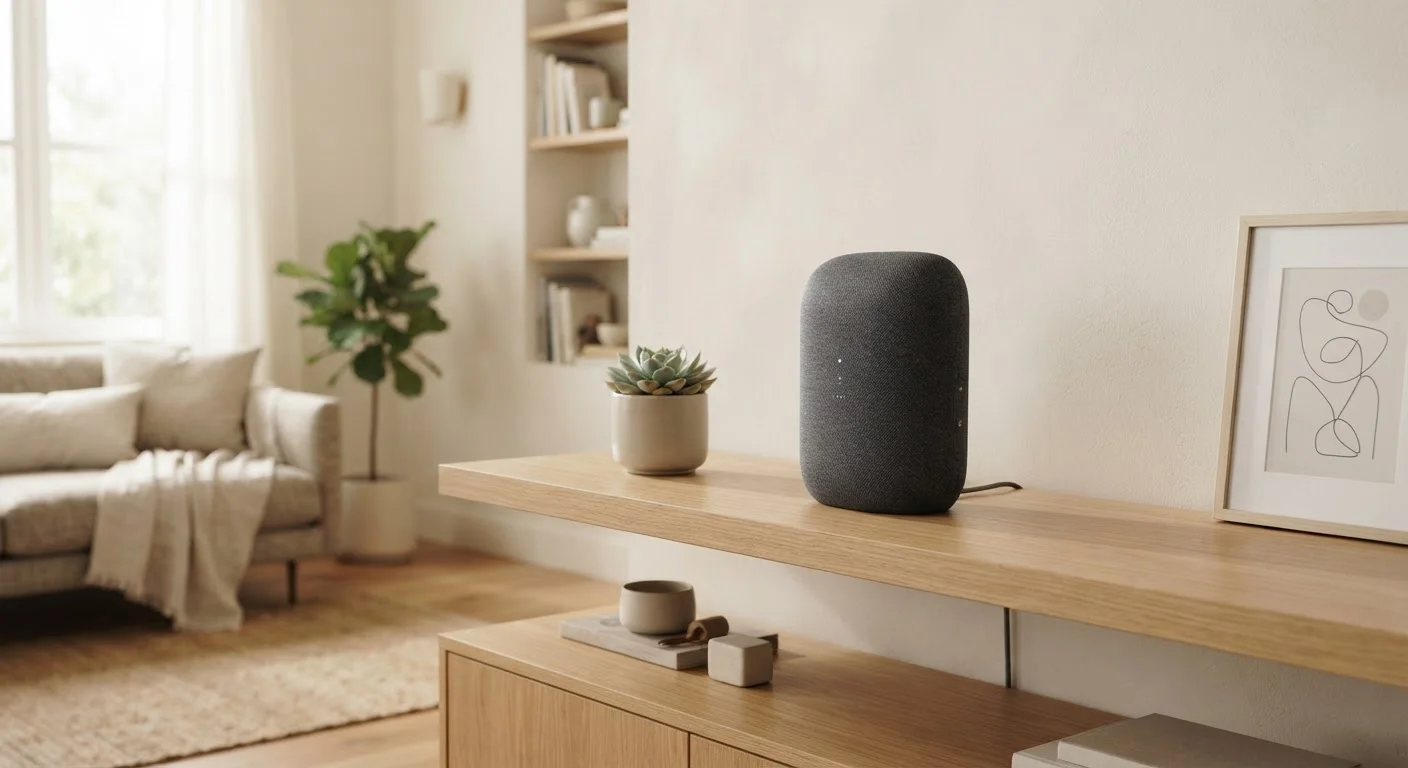
Photo credit: SnippetColumns.com | Easy Search, Reliable Information
In this article
A step-by-step walkthrough for configuring a smart speaker while keeping your privacy settings firmly in your own hands.
Key Takeaways
- Most smart speakers request more permissions than they need by default — you can change this.
- Disabling voice history storage does not stop the speaker from working for everyday tasks.
- Creating a separate account or household profile limits how much personal data is tied to the device.
- Muting the microphone physically is more reliable than relying on software-only controls.
- Reviewing privacy settings every few months keeps you in control as platform policies change.
Why Privacy Settings Matter Before You Say a Word
Smart speakers are always-on microphones in your home. That is not a scare tactic — it is the literal design: the device listens for a wake word continuously. What varies enormously is what happens after it hears something, and that is almost entirely within your control if you configure it correctly from the start.
Most privacy problems with smart speakers do not stem from exotic hacking scenarios. They come from default settings that most people never change, permissions granted in a hurry during setup, and data accumulation that happens quietly over months. The steps in this guide address all three of those issues directly.
If you have not yet decided which type of device fits your space, our comparison of smart speakers and smart displays is worth reading first. And if this is your first smart home device, start with what to think through before your first smart home device before continuing here.
What you will need
What You Will Need
Setup requires only a few things, but the optional items below can meaningfully reduce your data exposure with minimal extra effort.
Manufacturer companion app
Required to complete initial setup and access privacy and account settings.
Dedicated email address
Using an address not tied to your primary inbox limits personal data exposure on the platform account.
Router admin panel access
Allows you to place the speaker on a separate guest network, isolating it from other household devices.
Once you have these ready, work through the steps below in order. Skipping the early steps — particularly the account and network decisions — makes the later privacy steps less effective.
Create or review your platform account before setup
Before plugging anything in, decide whose account the speaker will run under. Using your primary personal account ties voice history, shopping habits, and calendar data directly to your main profile. Consider creating a secondary account — or a household/family account if the platform supports one — so the device's activity stays separate from your daily digital footprint.
Place the speaker on a guest Wi-Fi network
If your router supports a guest network, connect the speaker there rather than your main home network. This means the device cannot directly communicate with your computers, phones, or network-attached storage — even if it were compromised. Log into your router's admin panel, enable the guest network, and note those credentials before starting the companion app setup.
Follow the in-app setup — then pause before finishing
Open the companion app and work through the guided setup until you reach account linking or the permissions request screens. Stop here rather than tapping through quickly. These screens are where most of the privacy-relevant decisions are made, and rushing through them usually means accepting defaults you may not want.
Decline or limit optional data permissions
Platforms typically request permission for several optional data uses during setup: personalized results, voice model improvement, purchase history, and location access. Read each request individually. Core features — setting timers, playing music, answering general questions — work without most of these. Decline anything labeled optional, personal, or for improving our services unless you have a specific reason to enable it.
Disable voice recording storage and review deletion options
Most platforms save recordings of your voice interactions to a server by default. Navigate to the privacy or history section of the app and turn off voice history saving. If recordings already exist from the setup process, delete them now. While disabling storage does not prevent the speaker from processing your voice in the moment, it means clips are not retained and reviewed later.
Enable the physical microphone mute and test it
Every major smart speaker ships with a hardware mute button or switch that physically disconnects the microphone circuit. Enable it when the speaker is not in active use — during private conversations, work calls, or overnight. Test it by pressing the mute button and then trying a wake word: the device should not respond at all, confirming the hardware cutoff is working rather than a software-only block.
Review and adjust third-party skill or app permissions
After basic setup, browse the skills, actions, or routines marketplace in the companion app. Each third-party skill you enable is a separate service with its own data practices. Only install skills you will actually use, check the privacy policy link shown on each skill's detail page, and periodically audit which skills remain enabled — removing any you no longer use.
After Setup: Staying on Top of Your Privacy
Privacy Settings Are Not Set-and-Forget
Platform privacy policies and default settings can change with software updates. Scheduling a quarterly check-in — just five minutes in the companion app — keeps you aware of any new data-sharing options that appeared since you last looked. For a broader view of how these principles apply across your devices, see our guide to always-on home device privacy.
The companion app is your ongoing control panel. Most platforms now group privacy controls in a dedicated section — look for labels like Privacy, My Activity, or Data & Personalization. Spending a few minutes there periodically is more effective than any single setting you configure at setup.
For a deeper look at how these same principles apply to your phone — including microphone access, location, and ad tracking — see our complete guide to smartphone privacy settings. If you are planning to expand beyond a single speaker, Starting a Smart Home From Zero provides a practical roadmap for doing that without creating new privacy blind spots.
Default Settings Favor Data Collection
Smart speaker platforms are designed with data-sharing enabled by default. If you tap through setup screens without reading them, you are likely opting into voice history storage, personalized advertising, and contact or calendar access. Take the extra few minutes — these choices are much easier to make during setup than to unwind afterward.
Shared Households Require Extra Care
If others in your home — including children — will use the speaker, any voice interaction they have may be processed and stored under your account by default. Check whether your platform offers voice profiles or household accounts that separate activity by user. For guidance on managing shared devices more broadly, the shared family device setup walkthrough covers similar principles for tablets.

Author
Tech & Gadgets Editorial Team
Tech & Gadgets Editorial Team is the collective byline for our editorial team and contributor network. Articles published under this byline or an editorial pen name are researched, written, and reviewed according to our editorial standards for clarity, consistency, and independence before publication.
View all articles →