
Setting Up a Tablet as a Shared Family Device
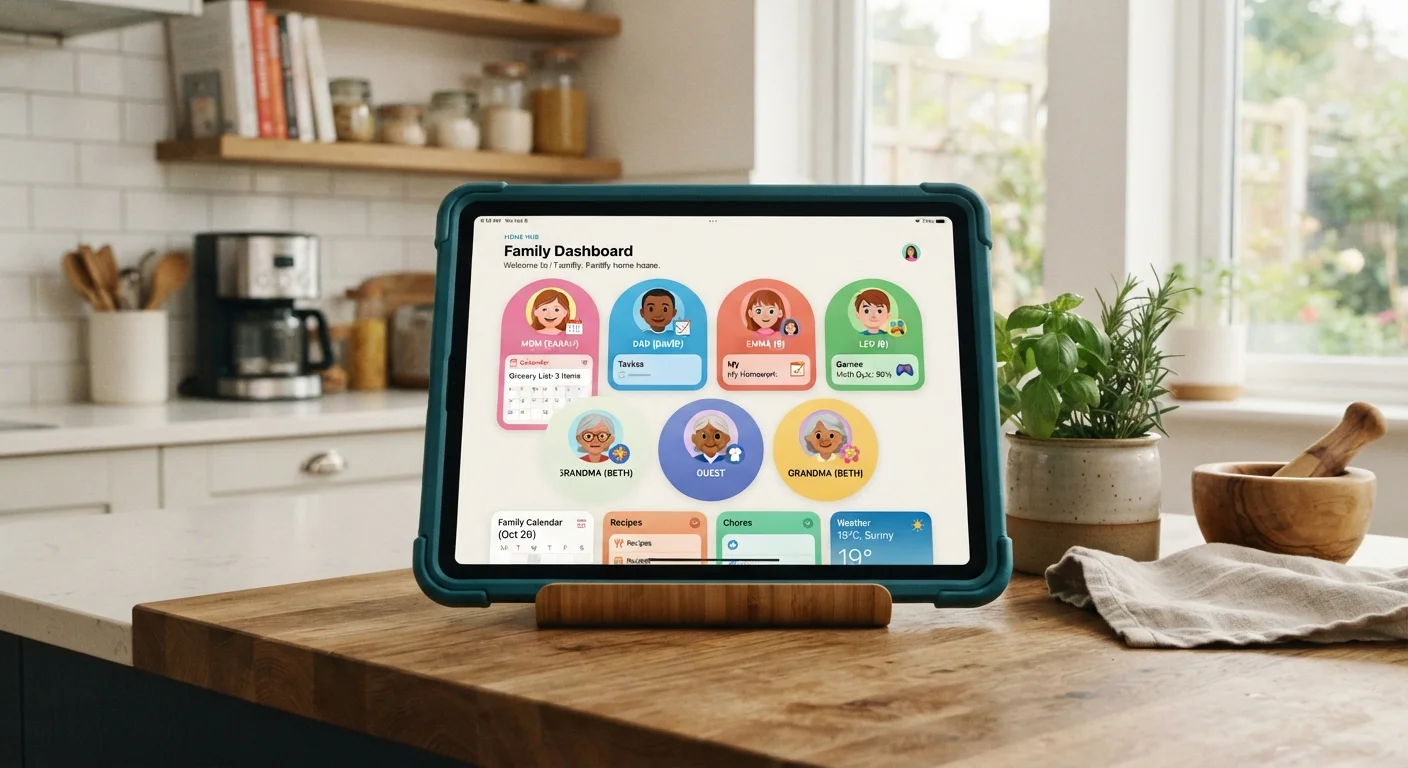
Photo credit: SnippetColumns.com | Easy Search, Reliable Information
In this article
Multiple users, different age groups, one tablet. A practical walkthrough of profiles, parental controls, and screen time settings.
Key Takeaways
- Most tablets support multiple user profiles, keeping each family member's apps and settings separate.
- Parental controls can restrict content, purchases, and app downloads without locking down the whole device.
- Screen time limits can be set per profile, so kids' usage rules don't affect adult accounts.
- A guest mode or restricted profile is useful for occasional visitors without creating a full account.
- Setting a strong PIN on the admin account prevents children from bypassing restrictions.
Why a Shared Tablet Needs a Deliberate Setup
Handing a tablet to every family member without any configuration is the most common mistake households make. Without separate profiles, one child's downloaded game clutter lands in everyone's app library, a toddler can wander into a teen's chat app, and adults inadvertently expose sensitive accounts. A few minutes of setup now prevents weeks of frustration later.
Modern tablets — both Android-based and iPad — have robust multi-user and family management tools built in. The challenge is that these features are buried in settings menus most people never open. Our guide to overlooked settings menu features covers similarly underused tools worth knowing about.
What you will need
What You'll Need Before You Start
Gather your tools and accounts before diving in — mid-setup interruptions can leave profiles in a partially configured state.
Primary tablet account (Google, Apple ID, or manufacturer login)
Required to create additional profiles and access parental control settings.
Google Family Link or Apple Screen Time (depending on platform)
Provides per-child screen time limits, app approval, and content filtering.
Strong PIN or password for admin account
Locks parental control settings so children cannot change them.
Guest mode or restricted profile
Lets occasional users access the tablet without touching personal accounts or settings.
If your household uses the tablet for long car trips or travel with kids, a well-configured shared profile also reduces backseat friction. Our tips for keeping kids engaged on long drives pairs well with a properly locked-down child profile.
Step-by-Step: Configuring the Tablet
Admin Account Password Is Your Master Key
The account you use to set up the tablet — often called the owner or admin account — controls all other profiles and parental settings. Use a PIN or password that children cannot guess, and do not store it where kids can find it. If a child accesses the admin account, all restrictions can be removed in minutes.
Secure the admin account first
Before creating any other profiles, lock down the main account. Go to Settings → Security (Android) or Settings → Face ID & Passcode (iPad) and set a PIN, password, or biometric lock. This account controls everything else — treat it like the master key to the whole device.
Create a separate profile for each adult user
On Android tablets, go to Settings → System → Multiple Users and tap Add User. Each adult gets their own apps, wallpaper, and account sign-ins completely isolated from others. On iPads, full multi-user profiles are not natively supported for personal use, so adults typically share one account and rely on Screen Time PINs to segment child access instead.
Set up a supervised child profile
On Android, use Google Family Link to create a supervised account for your child. This links to your own Google account and lets you approve app downloads, set content filters by age rating, and review activity. On iPad, go to Settings → Screen Time → Set Up Screen Time for Family and follow the prompts. Both platforms ask for the child's date of birth to calibrate content filters automatically.
Configure content filters and app permissions
Within the child's supervised profile, set the maximum content rating for apps, movies, and web browsing. On Android via Family Link, you can approve or block individual apps. On iPad, use Screen Time → Content & Privacy Restrictions → Content Restrictions to set age-appropriate limits. Also enable Safari restrictions or set the browser to limit adult websites if your child uses the browser at all.
Set daily screen time limits per profile
Both Android's Family Link and Apple's Screen Time let you define daily time limits either by total usage or by app category (e.g., games get one hour, educational apps are unlimited). Set a consistent downtime window — typically bedtime hours — during which only approved apps like clock or emergency calls remain accessible. These limits apply only to the child profile and leave adult accounts unaffected.
Lock purchase and download permissions
In your app store settings, require password authentication for every purchase — including free app downloads. On Android, open the Play Store → Settings → Authentication and set it to require verification for all purchases. On iPad, go to Settings → Screen Time → Content & Privacy Restrictions → iTunes & App Store Purchases and set installing apps and in-app purchases to Don't Allow for child accounts.
Add a guest or restricted profile for visitors
If relatives or babysitters occasionally use the tablet, set up a guest profile (Android) rather than handing over a personal account. Guest mode wipes its session data when the user logs out, keeping browsing history and personal information private. On iPad, a second adult Apple ID or a tightly restricted Screen Time setup can approximate the same effect. See our guide on limiting data sharing with shared devices for a related privacy mindset.
Label Profiles With Names, Not Ages
When naming profiles, use the person's name rather than 'Child' or 'Kid.' It makes the lock screen feel personal and reduces friction when handing the tablet over. For younger children who can't read yet, many platforms let you assign a color or avatar instead.
Maintaining the Setup Over Time
A shared tablet isn't a set-and-forget situation. Children's needs change, and so should their profiles. Review content filters every six months or when a child moves into a new age bracket. Family Link and Screen Time both send weekly usage reports — checking them occasionally helps you spot if a limit needs adjusting or an app slips through that shouldn't.
Also revisit privacy permissions periodically. Apps update and sometimes quietly request new permissions in the background. For a full breakdown of what those permissions mean in practice, our smartphone privacy settings guide explains location access, microphone permissions, and more in plain language.
App Store Purchases Need a Second Lock
Adding a user profile does not automatically block in-app purchases or new app downloads. You must configure purchase authentication separately in your app store's settings. Skipping this step is one of the most common reasons families end up with unexpected charges.
Finally, remember that the tablet is likely one of several devices your family uses. The same profiling and screen-time philosophy applies to phones and computers — building consistent habits across all devices makes the rules easier for kids to understand and follow. For more ideas on getting more from hardware you already own, see features hiding in your current devices.

Author
Tech & Gadgets Editorial Team
Tech & Gadgets Editorial Team is the collective byline for our editorial team and contributor network. Articles published under this byline or an editorial pen name are researched, written, and reviewed according to our editorial standards for clarity, consistency, and independence before publication.
View all articles →