
What Airplane Mode Actually Does to Your Phone
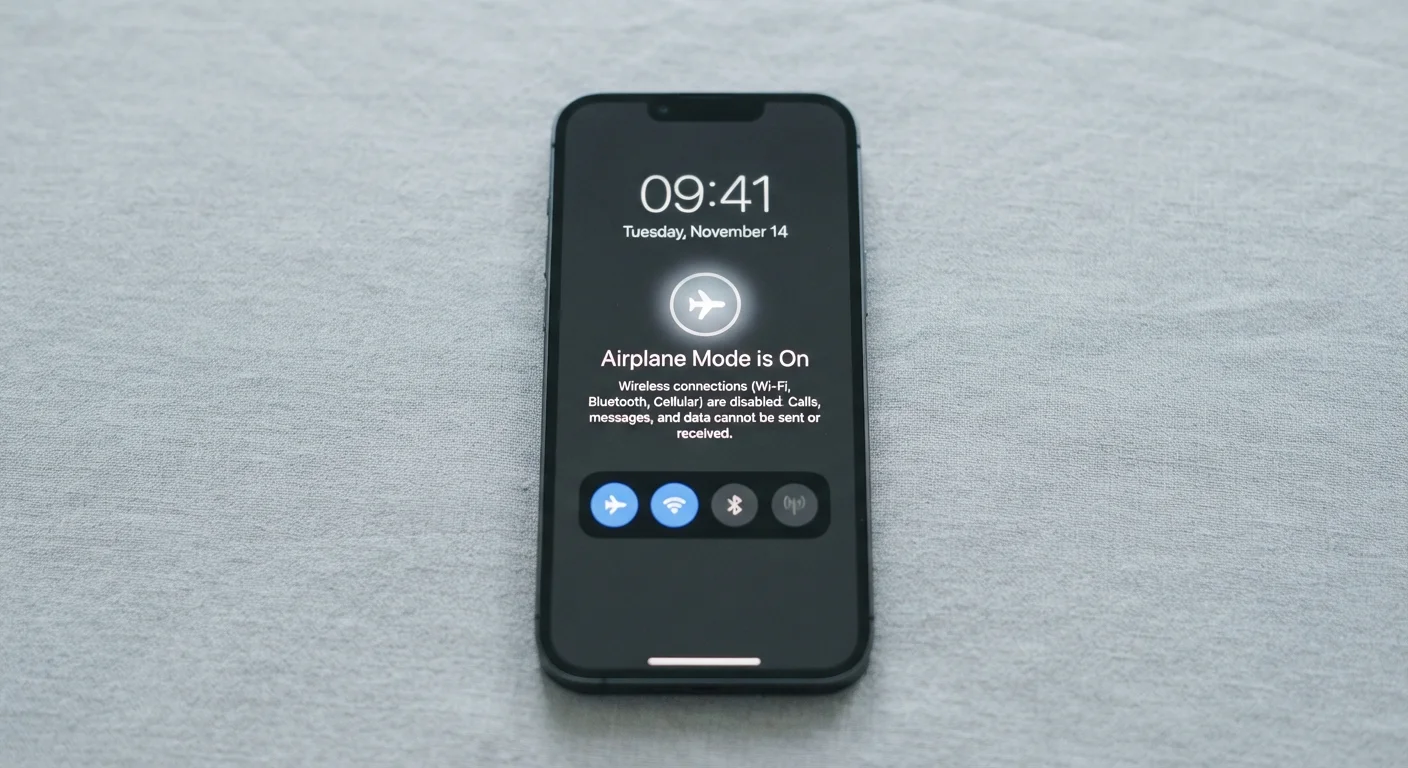
Photo credit: SnippetColumns.com | Easy Search, Reliable Information
In this article
Airplane mode isn't just for flights. Here's what it really disables, what stays on, and when using it makes practical sense.
Key Takeaways
- Airplane mode disables cellular, Wi-Fi, and Bluetooth simultaneously by default.
- You can manually re-enable Wi-Fi or Bluetooth after activating airplane mode.
- GPS reception is unaffected — your phone can still determine location passively.
- Airplane mode is useful beyond flights: it can extend battery life and reduce distractions.
- Calls and texts cannot be received while airplane mode is on, but alarms still fire.
What Gets Turned Off — and What Doesn't
When you enable airplane mode, your phone shuts down three distinct radios at once: the cellular radio (calls, SMS, mobile data), Wi-Fi, and Bluetooth. Think of each as a separate transmitter your device was actively running in the background — airplane mode kills all three simultaneously.
What many people don't realize is that GPS keeps working. GPS is a receive-only technology — your phone listens to satellite signals but doesn't broadcast anything back. That distinction matters: offline mapping apps can still track your location without any cellular or Wi-Fi connection.
Also unaffected: your camera, music playback from local files, locally stored notes, alarms, and any app that doesn't require a network connection. Airplane mode is not a full device shutdown — it's a targeted radio kill switch.
A Word on NFC
Near Field Communication (NFC) — used for contactless payments and file sharing — is also disabled in airplane mode on most devices. If you rely on tap-to-pay, you'll need to turn airplane mode off first. NFC behavior can vary slightly by device manufacturer.
The Wi-Fi and Bluetooth Exception
Here's where many users get tripped up. Most modern phones let you re-enable Wi-Fi and Bluetooth individually even after airplane mode is on. On both iOS and Android, you can swipe into the quick-settings panel and tap the Wi-Fi or Bluetooth icon to turn them back on independently.
This is how in-flight Wi-Fi works: you enable airplane mode as required, then manually reconnect to the cabin's Wi-Fi network. Airlines that offer Bluetooth audio accessories for their entertainment systems use the same principle.
That said, the default behavior when you first flip airplane mode on is to disable all three radios together. If you need Wi-Fi or Bluetooth, you have to turn those back on yourself each session — they don't automatically restore when airplane mode is toggled off on every device, so check your specific phone's behavior.
For a broader look at how Wi-Fi and cellular interact day-to-day, see our guide on Wi-Fi vs. mobile data.
Practical Reasons to Use It Beyond Flights
Airplane mode has genuine utility on the ground. A few situations where it makes real sense:
- Faster charging: Disabling radios reduces background power draw, so your battery fills up more quickly — useful when you have 20 minutes and need every percentage point.
- Eliminating distractions: Unlike Do Not Disturb, airplane mode makes it physically impossible for notifications, calls, or data to reach you. It's a harder boundary when you need to focus.
- Reducing battery drain in weak-signal areas: When your phone struggles to find a cell signal, it repeatedly ramps up transmitter power to search — which drains the battery fast. Airplane mode stops that cycle.
- Kids' content mode: Handing a tablet to a child? Airplane mode plus locally downloaded content keeps them entertained without any unexpected purchases, notifications, or web access.
Use Airplane Mode for a Quick Battery Boost
If you're rushing and need your phone charged in a hurry, enable airplane mode before plugging in. With cellular and Wi-Fi off, your phone stops hunting for signals and reduces background app activity, which typically speeds up the charging cycle noticeably.
For more underused phone settings worth exploring, see the settings features most people have never touched.
What Airplane Mode Is Not
It's worth clearing up a few common mix-ups. Airplane mode is not the same as Do Not Disturb. Do Not Disturb silences alerts and suppresses call notifications, but your phone remains fully connected to networks and continues receiving data in the background.
Airplane mode is also not a privacy guarantee. It stops active radio transmissions, but it doesn't prevent apps from logging data locally for later upload, and it doesn't erase existing location history or cached information. If privacy is your goal, understanding your smartphone's privacy settings covers the controls that actually matter.
Finally, airplane mode is not a cure for poor battery health over time. It's a situational tool. For habits that genuinely keep your phone performing well long-term, sustainable phone care practices are worth building into your routine.
Frequently Asked Questions

Author
Tech & Gadgets Editorial Team
Tech & Gadgets Editorial Team is the collective byline for our editorial team and contributor network. Articles published under this byline or an editorial pen name are researched, written, and reviewed according to our editorial standards for clarity, consistency, and independence before publication.
View all articles →