
Cloud Backup vs. Local Backup for Your Phone's Data
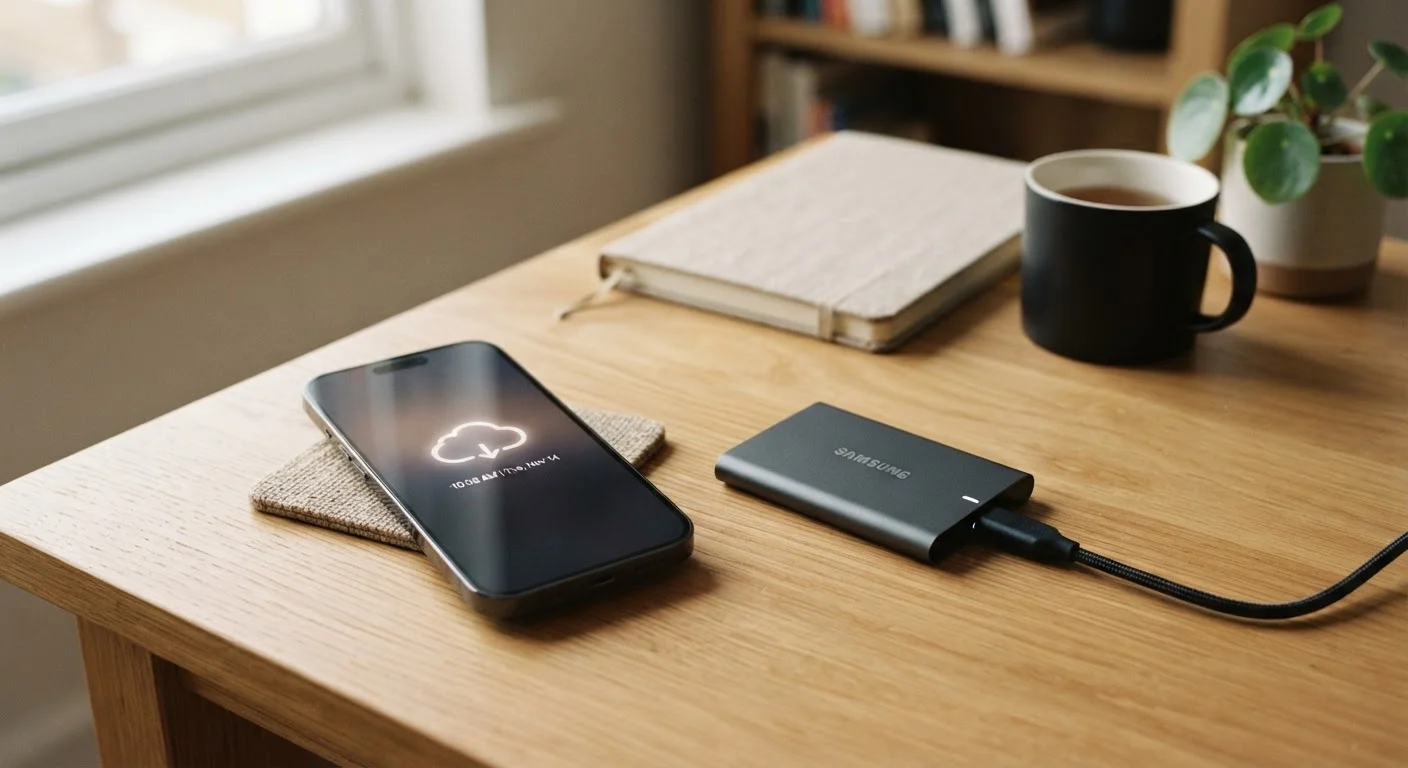
Photo credit: SnippetColumns.com | Easy Search, Reliable Information
In this article
Each backup method has real trade-offs in privacy, cost, and reliability. Here's how to think through which approach — or combination — fits your needs.
Key Takeaways
- Cloud backup runs automatically and lets you restore data from any location, but depends on a subscription and internet access.
- Local backup keeps your data entirely under your control, with no ongoing fees and no third-party access.
- A hybrid approach — using both methods — offers the strongest protection against data loss.
- Privacy-conscious users may prefer local backup, while those prioritizing convenience often lean toward cloud.
- Neither method is universally better; the right choice depends on your habits, storage needs, and comfort with risk.
Automatic backups with minimal user effort
Most cloud services back up nightly while your phone charges, so protection continues even if you forget to initiate it manually.
Accessible from anywhere after device loss
If your phone is stolen or broken while you're traveling, you can sign into your account on a replacement device and restore your data remotely.
Scalable storage that grows with your library
Paid cloud tiers let you expand capacity on demand, so running out of backup space is rarely an urgent issue.
Built into existing platform ecosystems
iOS and Android both integrate cloud backup natively, reducing setup complexity for most users.
Ongoing subscription cost for meaningful storage
Free tiers are typically 5–15 GB — enough for contacts and app data, but insufficient for users with large photo and video libraries.
Data is stored on third-party servers
Your files are accessible to the platform provider and potentially subject to legal requests, data breaches, or policy changes.
Requires internet access to back up and restore
A poor connection can delay or interrupt backup, and restoring from cloud without a reliable network can be slow or impractical.
Service changes can disrupt your backup history
Providers can change pricing, storage limits, or discontinue services — leaving users scrambling to migrate data.
What's Actually at Stake When You Back Up
Your phone holds a compressed version of your daily life: photos, contacts, messages, financial apps, health data, and passwords. Losing that data to a cracked screen, theft, or a failed update is far more disruptive than most people anticipate — until it happens to them.
Two broad approaches exist for protecting that data: cloud backup, which sends copies of your files to remote servers over the internet, and local backup, which stores copies directly on your own hardware — a computer, external drive, or NAS (network-attached storage) device.
Neither approach is automatically superior. Understanding what each one actually does, and where it falls short, is the starting point for making a decision that fits your life. If you're also thinking about how storage fills up in the first place, see our explainer on what's consuming your phone's storage.
Cloud Backup: Advantages and Disadvantages
Cloud services from major platform providers — think iCloud for iPhones or Google One for Android — are designed to run in the background with minimal effort from you. Once set up, they back up your data automatically, typically overnight on Wi-Fi.
Automatic backups with minimal user effort
Most cloud services back up nightly while your phone charges, so protection continues even if you forget to initiate it manually.
Accessible from anywhere after device loss
If your phone is stolen or broken while you're traveling, you can sign into your account on a replacement device and restore your data remotely.
Scalable storage that grows with your library
Paid cloud tiers let you expand capacity on demand, so running out of backup space is rarely an urgent issue.
Built into existing platform ecosystems
iOS and Android both integrate cloud backup natively, reducing setup complexity for most users.
The convenience is real, but it comes with meaningful trade-offs. Ongoing subscription costs add up, especially as your photo library grows past free-tier limits. More importantly, your data sits on servers controlled by a third party. That's worth considering if you store sensitive personal content. For a broader look at how data sharing works on mobile devices, our smartphone privacy settings guide lays out the landscape clearly.
Cloud backup also requires a reliable internet connection to restore — a problem if your carrier is down or you're in a low-signal area when you need recovery most. And while Wi-Fi is generally the right connection for large backups, it's not always available.
Ongoing subscription cost for meaningful storage
Free tiers are typically 5–15 GB — enough for contacts and app data, but insufficient for users with large photo and video libraries.
Data is stored on third-party servers
Your files are accessible to the platform provider and potentially subject to legal requests, data breaches, or policy changes.
Requires internet access to back up and restore
A poor connection can delay or interrupt backup, and restoring from cloud without a reliable network can be slow or impractical.
Service changes can disrupt your backup history
Providers can change pricing, storage limits, or discontinue services — leaving users scrambling to migrate data.
Local Backup: Advantages and Disadvantages
Backing up to a computer or external drive puts you directly in control. Tools like iTunes/Finder for iPhones or Android File Transfer for Android devices let you create a full snapshot of your phone without involving any third-party service.
Encrypted Local Backups vs. Default Settings
On iOS, local backups created through Finder or iTunes are unencrypted by default, meaning anyone with access to your computer could open the backup file. Enabling encryption in the backup settings adds password protection and also backs up saved passwords and health data — two categories excluded from unencrypted backups. Android backup behavior varies by manufacturer and app, so check your device's documentation for specifics.
Local backups can be encrypted and stored offline, which is attractive for anyone concerned about account breaches or data exposure. This mirrors the philosophy behind local-control smart home devices — keeping critical functions independent of external servers.
The practical downside is that local backup requires intentional action and a nearby device. If your home is burglarized or damaged in a flood or fire, a local-only backup stored in the same location could be lost alongside your phone. It's also not accessible remotely — if your device fails while you're traveling, you can't restore from a local backup without physical access to it.
29%
Smartphone users who have experienced data loss
According to Acronis research, roughly 29% of users have lost data due to accidental deletion, device failure, or theft at some point.
3-2-1
Backup rule recommended by data security professionals
The widely cited 3-2-1 rule advises keeping 3 copies of data, on 2 different media types, with 1 stored off-site — a model that naturally combines cloud and local methods.
How to Decide — or Combine Both
The cleanest framework: think about what failure scenario worries you most. If losing your phone while away from home is your biggest concern, cloud backup solves that problem. If unauthorized access to your data feels riskier, local backup gives you more control. If both scenarios feel plausible, a hybrid setup is worth the modest extra effort.
A practical hybrid approach for most users: enable automatic cloud backup for contacts, app data, and essential documents, and run a local encrypted backup to a computer or external drive once a month (or after major life events like a vacation). That way, routine data stays continuously protected, and you have a complete, private snapshot that doesn't depend on any service staying online or solvent.
Privacy concerns around data storage don't stop at your phone — if you're thinking broadly about connected-device exposure, our guide to always-on home device privacy covers how to manage your household's data footprint.

Author
Tech & Gadgets Editorial Team
Tech & Gadgets Editorial Team is the collective byline for our editorial team and contributor network. Articles published under this byline or an editorial pen name are researched, written, and reviewed according to our editorial standards for clarity, consistency, and independence before publication.
View all articles →